Install Roséverse Wii U/Nintendo 3DS
You must have homebrewed these systems previously and set up Pretendo Network on them.
Roséverse keeps the rest of Pretendo Network functionality intact and only replaces the Miiverse functionality (applet/in-game), you may continue playing online.
Nintendo 3DS Installation Guide
The Nintendo 3DS version of Roséverse is currently not available and it's being worked on.
Wii U Installation Guide
Previous Requirements
Make sure to have your Wii U homebrewed.
Check Wii U Hacks Guide for a more detailed guide and getting started.
Ensure to be using Aroma, older Wii U homebrew enviroments are not compatible.
Make sure to also have Inkay (Pretendo) installed and at least one account with a Pretendo Network ID linked.
Roséverse is not compatible with Nintendo Network or any other revival service that isn't Pretendo Network.
Downloading Inkay (Roséverse)
Download the latest Inkay (Roséverse) after all of these previous steps here:
Download Inkay (Roséverse) from GitHub.
Replacing Inkay (Pretendo) > Inkay (Roséverse)
Once your SD Card is set up to your computer/device, please replace Inkay-pretendo.wms and Inkay-pretendo.wps accordingly with the Inkay (Roséverse) version.
WMS file goes on: SD:/wiiu/environments/aroma/modules (Replaces your existing Pretendo Inkay module)
WPS file goes on: SD:/wiiu/environments/aroma/plugins (Replaces your existing Pretendo Inkay plugin)
If you use a different enviroment from "aroma" please replace the files there as well, remember that Inkay (Roséverse) only works in the Aroma homebrew enviroment.
After Installation
Restart your console and see if it works, if you have issues, please check the Frequently Asked Questions (FAQ) page or contact us in our Discord server at our website (projectrose.cafe)
After the initial user setup, please make sure to set up a user password if you havent already. This password can be used to access Miiverse on other devices, and to authenticate if linking a new device (linking a 3DS to an account made on Wii U and viceversa), it might also be useful if your SD card corrupts and your Rosé keys (saved in the SD card by the plugin to identify you) get lost so you can restore them and keep using the service.
For troubleshooting, check Frequently Asked Questions (FAQ) or join the Discord server for help.
How to set up a user password?
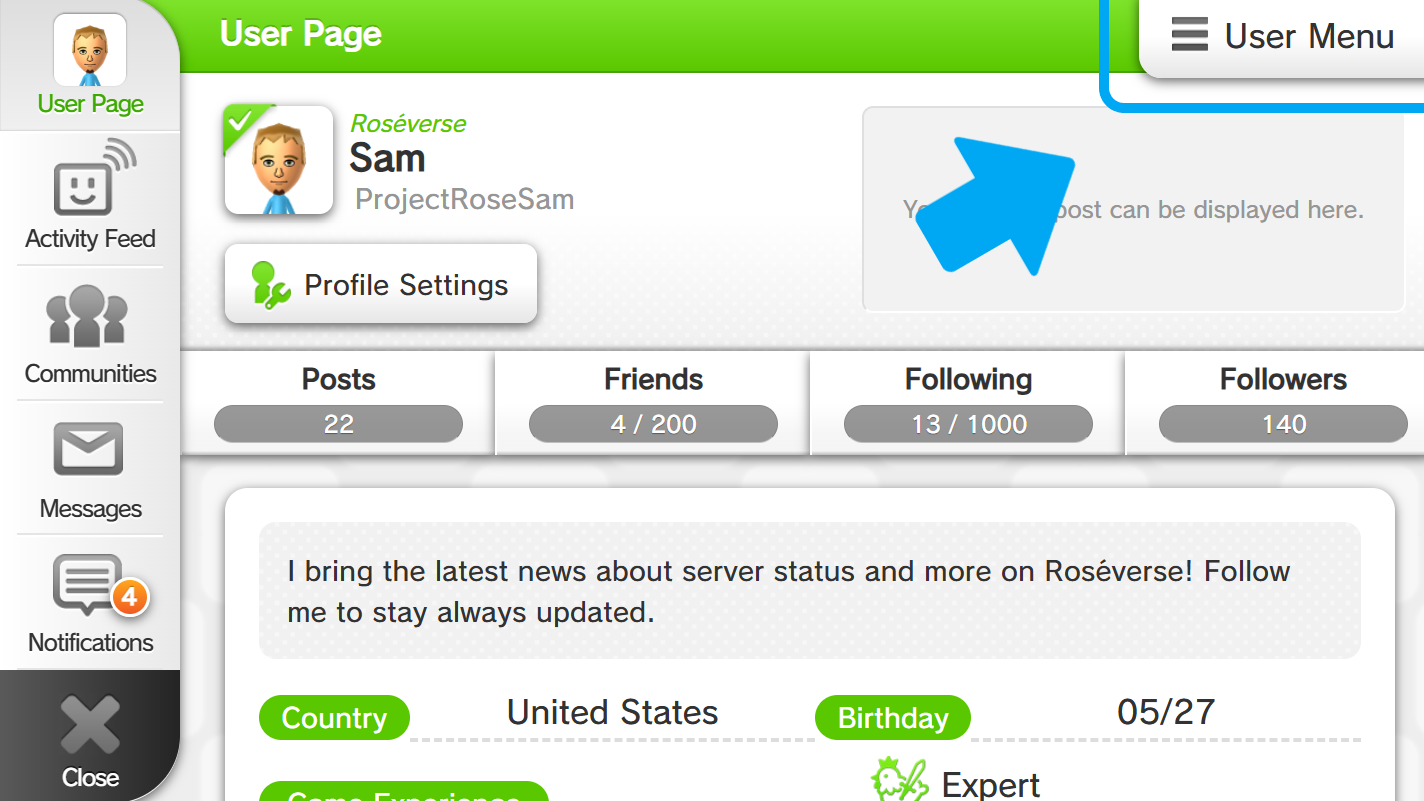
You can set a user password by opening Miiverse, selecting User Page (Your Mii at the top left corner) > User Menu > Miiverse Settings > Change Off-device Password
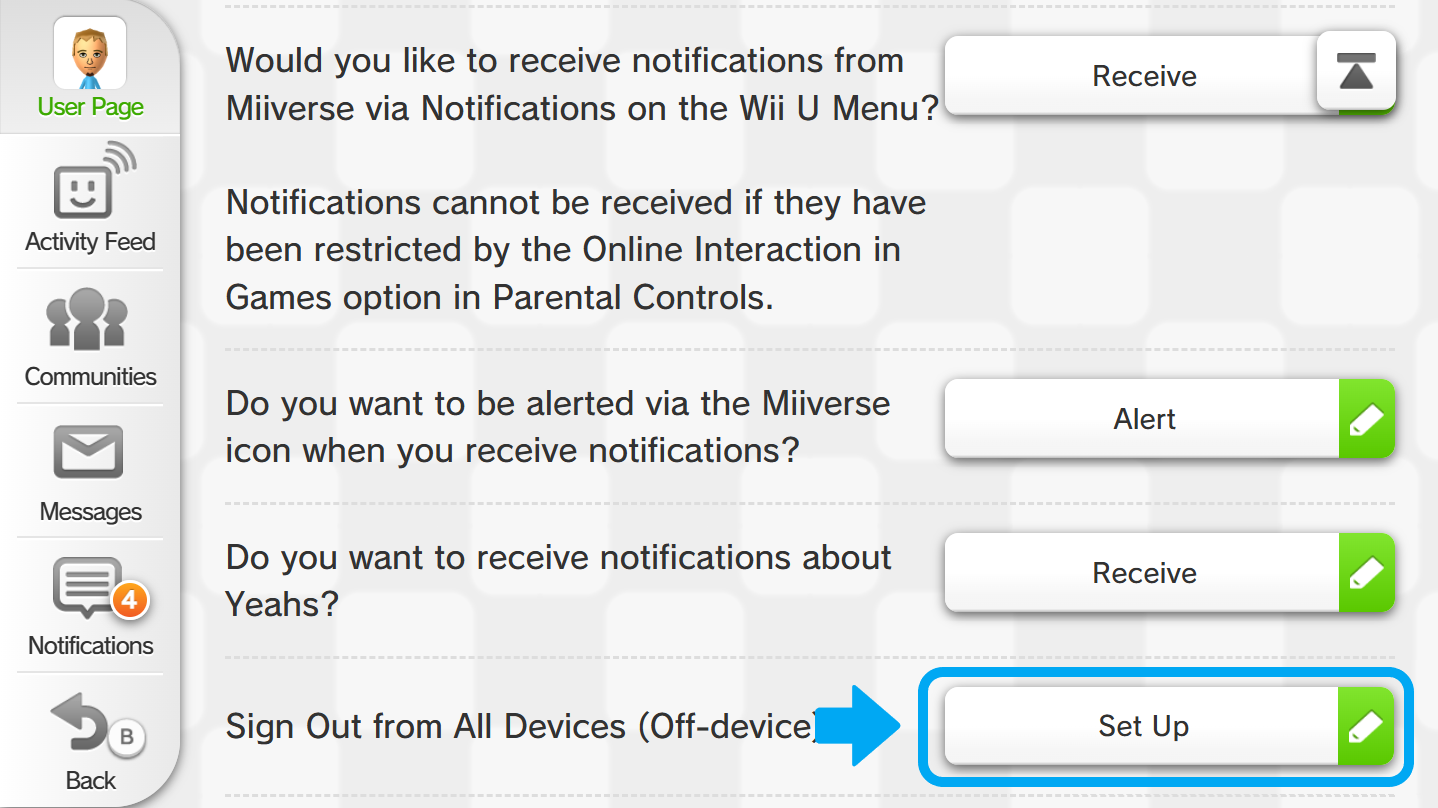
You are also able to close all Miiverse sessions at once outside of your consoles by selecting the option Sign Out from All Devices (Off-device) by scrolling to the bottom inside Miiverse Settings.
For Wii U
-
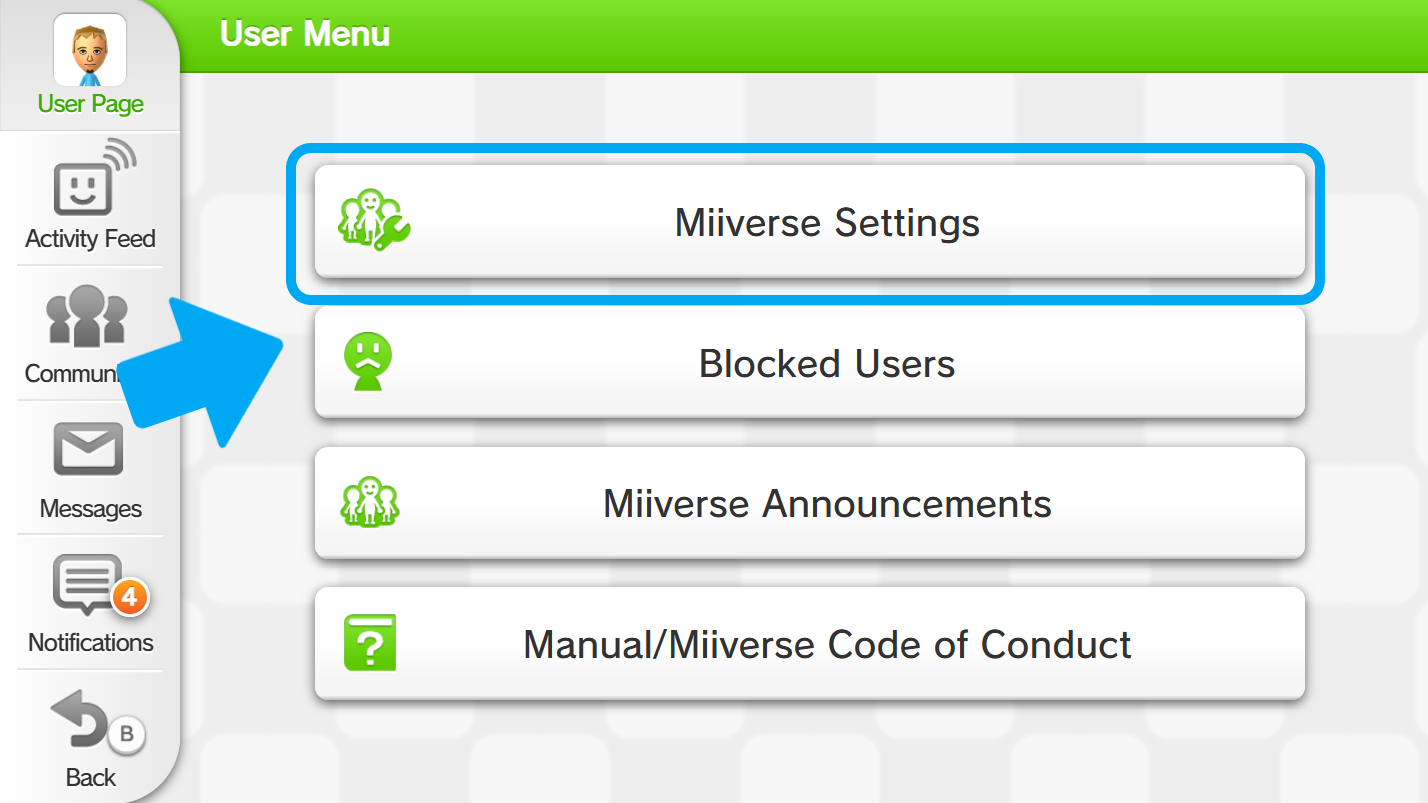
Once on Miiverse, select User Page, then select User Menu
-
Inside User Menu, select Miiverse Settings
-
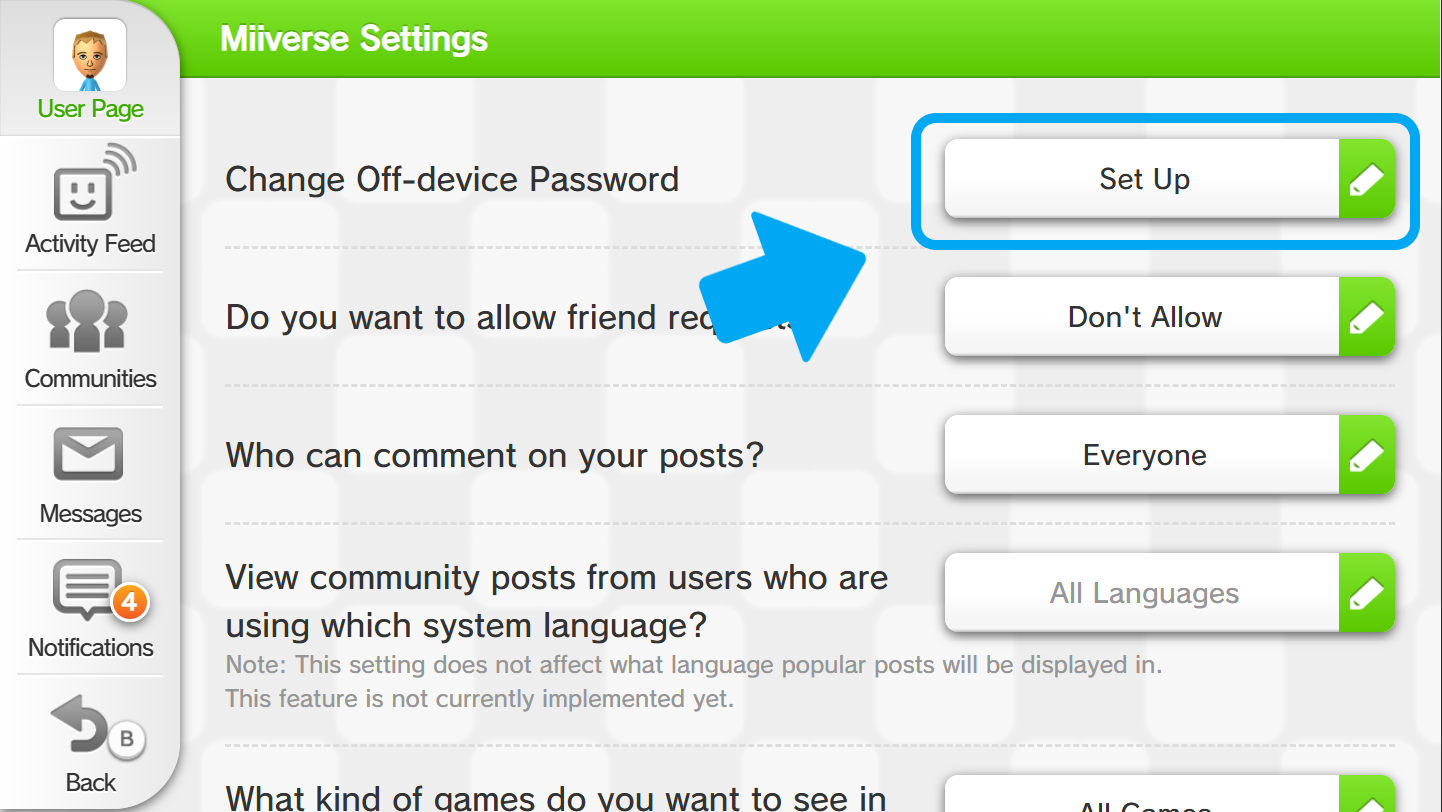
Inside Miiverse Settings, select "Set Up" on Change Off-device Password
-
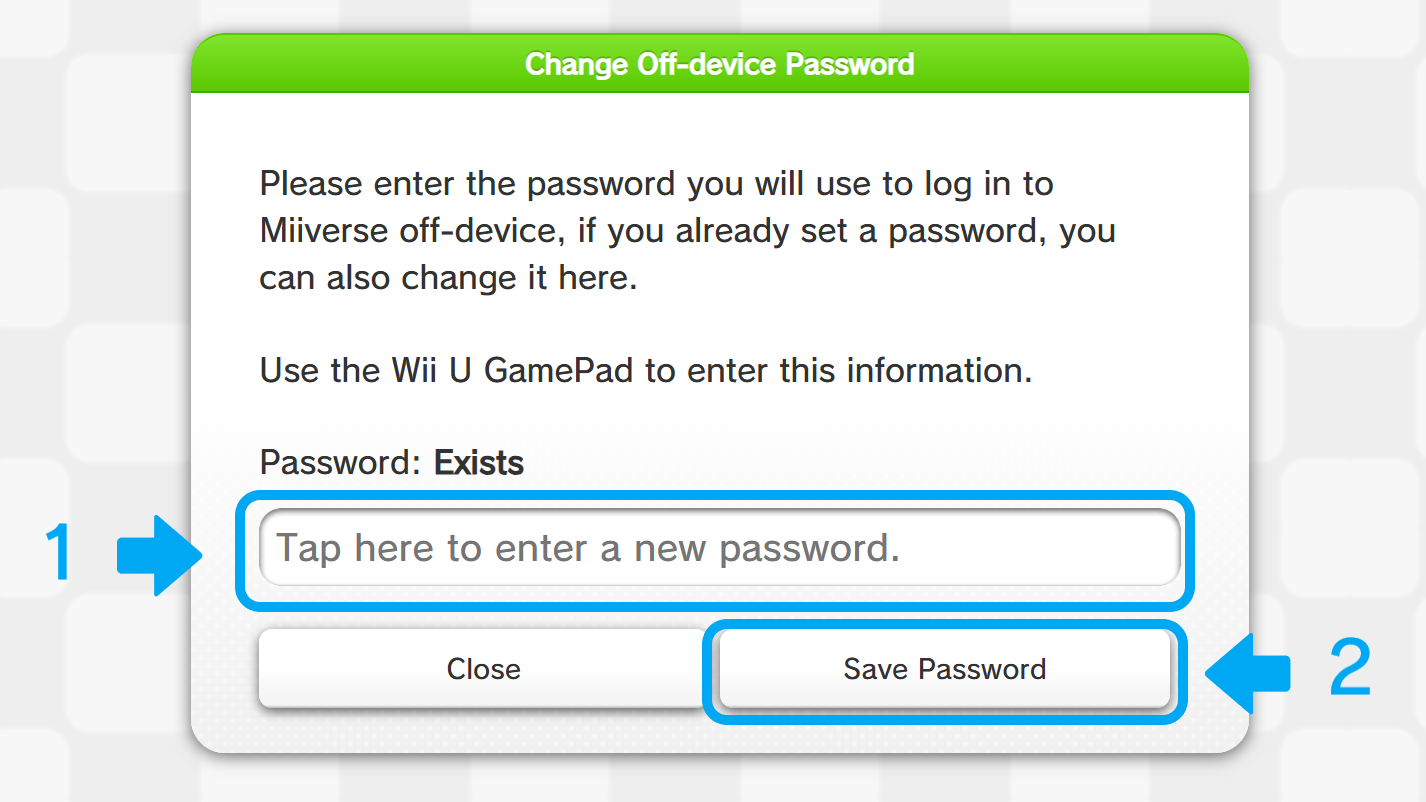
Enter your password if you haven't already, then press Save Password, if you already have a password an text indicator will be shown, changing it again will not close your existing sessions.
-
You may close all existing sessions of Miiverse off-device by scrolling to the bottom and selecting "Set Up" on Sign Out of All Devices (Off-device)